Documentation
Guide to all tools on DiabetesTech Hub
Overview
DiabetesTech Hub (diabetes.newstargeted.com) is a collection of tools for diabetes education, device comparison, calculations, lottery draws, and hosted Nightscout CGM sites. Most public tools work without an account; member tools require sign-in.
Public tools (no login)
- Dice – lottery winner selection for events and fundraising
- Compare – side-by-side diabetes device specifications
- Calculator – HbA1c estimator and insulin bolus calculator
- Nightscout hosting – marketing, pricing, and status (instances require an account)
- Gluroo and CamAPS FX – follow a student pump phone from another Gluroo phone
- Libre error codes and Dexcom alerts
Member tools (login required)
- Dashboard, Travel expenses, Invoice, Meeting minutes
- Nightscout dashboard – create and manage CGM instances
Language
Switch between Norwegian and English using the sidebar language toggle, or visit /docs/en for English. Default language follows your browser when no preference is stored.
Dice (Lottery)
The Dice tool runs fair lottery draws for coloured ticket ranges. It is mobile-friendly with optional sound and animations.
- Add a lottery – choose a colour, letter label, and number range (from / to).
- Draw winner – the system picks a random ticket number in range.
- History – recent winners are listed (logged-in users see personal history for 24 hours).
- Export – download draw data from the sidebar when available.
- Vipps QR – display a payment QR for ticket sales (configurable image).
Sidebar controls: sound on/off, animations on/off, clear history, export data. Use Report to flag issues to site admins.
Compare devices
Smart Compare helps you find diabetes equipment based on what matters to you. Set priorities (closed loop, tubeless, long sensor wear, and more), browse a model-level catalog updated for June 2026, and compare two devices side by side.
- Find best match: weighted recommendation engine
- Browse: search 30+ models (CGM, pumps, BGM, pens, FGM)
- Compare: side-by-side specification table
- Classic brand-level comparison remains at /compare/
Calculator
The Calculator has two tabs: HbA1c estimator and Bolus calculator. Default units are mmol/L (Norwegian); you can switch to mg/dL.
HbA1c estimator
Data sources:
- Manual – enter average glucose and period (typically 90 days)
- Nightscout – pull stats from your hosted instance (login required)
- CSV/JSON upload – Dexcom Clarity CSV, FreeStyle Libre CSV, or Nightscout
entries.json
Results include estimated DCCT %, IFCC mmol/mol, eAG, GMI, and time-in-range bands.
See also: device comparison, Nightscout hosting, and the in-page bolus tab (TDD education hints and high-fat meal notes).
Tier 1 features
- TDD hints on the bolus tab (500 rule for ICR, 1800/1700 for ISF); apply only when you click.
- Sparkline after CSV or Nightscout import (daily means from Nightscout).
- Lab A1c from Nightscout treatments via
?action=lab-a1cwhen logged in. - Sensor suggestions from the device picker (G7, Libre 3 Plus, Eversense 365).
Bolus calculator
Enter carbs, current glucose, target, ICR (insulin-to-carb ratio), ISF (insulin sensitivity), optional IOB, and pump/pen step size. The tool calculates meal bolus, correction bolus, and rounded total dose.
Nightscout hosting
Nightscout hosting on DiabetesTech Hub lets you create and manage your own Nightscout instance. Each instance has a unique URL, its own configuration (CGM data sources, alerts, theme), and is isolated from other users. Subscribe to a plan, then create instances from the dashboard.
Overview
Log in with Discord or email, choose a subscription, and open Nightscout dashboard to manage instances.
No MongoDB setup required
DiabetesTech Hub provisions and manages MongoDB for each Nightscout instance. You do not need your own MongoDB Atlas account, connection string, or database admin skills to get started.
- Create an instance from the dashboard; we generate a secure database URI automatically.
- Backups use
mongodumpagainst your instance URI on a fixed schedule. - Operators may attach a shared Atlas cluster for legacy cutover instances; that is handled server-side.
Focus on your API secret, CGM uploader, and Nightscout URL. Data stays tied to your instance even when you change Nightscout version (redeploy updates code, not your database).
Instance URLs
Every instance has a canonical URL of the form:
https://diabetes.newstargeted.com/nightscout/instance/<your-instance-name>
When you create an instance, you choose a short name (letters, numbers, hyphens only). For example, my-cgm becomes:
https://diabetes.newstargeted.com/nightscout/instance/my-cgm
Share this URL with CGM apps, followers, or Nightscout Connect.
Dashboard & management
- Dashboard (
/nightscout/dashboard) – List instances, open, manage, import, or export. - Create instance (
/nightscout/create-instance) – Name, API secret, units, data sources, alerts, modules. - Manage instance – Access URL, API secret, status (active / inactive / suspended).
- Import / Export – From another Nightscout or CSV; export CSV, JSON, or MongoDB dump.
Data sources & integrations
Data enters Nightscout via bridges aligned with nightscout-connect.
Glooko
The create-instance form includes a Glooko Server dropdown:
- Default (api.glooko.com) – Default Glooko API server.
- EU (eu.api.glooko.com) – For European accounts.
- de-fr / US – Other regional options.
Maps to CONNECT_GLOOKO_SERVER / CONNECT_GLOOKO_ENV. See nightscout-connect – Glooko.
Dexcom Share
Account name and password; optional region (US/OUS). Uses CONNECT_SOURCE=dexcomshare.
Libre Link Up
Username, password, and region (e.g. US, EU). Uses CONNECT_SOURCE=linkup.
Other sources
Minimed Carelink, Pushover, IFTTT, and more. Keep passwords and API keys secure.
Security & configuration
Site secrets live in config.php (not web-accessible). Instance settings are stored per instance in the database. Use a strong API secret and HTTPS sessions.
Gluroo and CamAPS FX
- Website: Gluroo (https://gluroo.com/)
- iPhone: Gluroo: Diabetes Logger
- Android: Gluroo: Diabetes Log Tracker (package com.gluroo.app)
This is a setup guide, not medical advice. Dosing stays in CamAPS FX and with the care team. Do not dose from Gluroo.
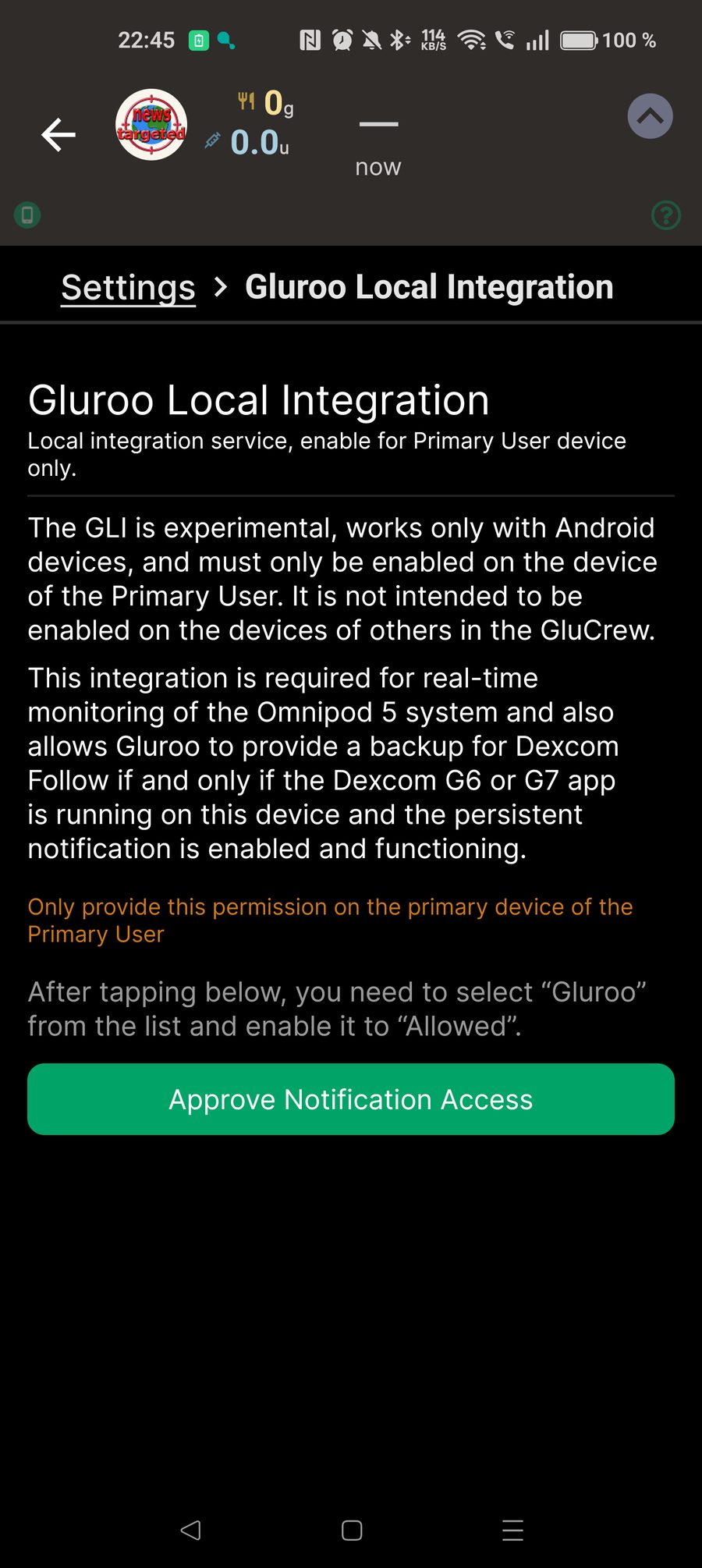
CamAPS FX for the YpsoPump runs on Android and on iPhone. The Gluroo app runs on Android and on iPhone. Who uses which phone is set out under Android and iPhone. The GLI screenshot later on this page is the Android path we opened (OnePlus, Gluroo 2.3.26, English UI).
Android and iPhone
- CamAPS FX for the YpsoPump runs on Android and on iPhone. The Gluroo app also runs on Android and on iPhone.
- A parent or other follower can use Gluroo on Android or on iPhone. They accept the GluCrew invite. Leave GLI off on the follower phone.
- The steps and screenshot under Student Android phone: GLI are the Android path we opened on a OnePlus with Gluroo 2.3.26. Gluroo Local Integration reads CamAPS FX notifications only on Android, and only on the same phone that runs CamAPS FX. An iPhone does not have that notification-reading step.
- If the student's CamAPS FX is on an iPhone, put Gluroo on that iPhone as Primary User and invite followers the same way. Do not turn on GLI, because GLI is Android-only. We have not walked that iPhone setup on a device yet, so this page does not describe a verified CamAPS-to-Gluroo button path.
- The student may also install Gluroo on a second phone (the other system, Android or iPhone) and join the same GluCrew once the primary phone is uploading. The second phone does not run GLI.
1. Install
- Leave CamAPS FX installed on the student's phone, Android or iPhone. It stays the pump controller. Gluroo does not replace it.
- If that phone is Android, install Gluroo from Google Play on the same phone. The store title is Gluroo: Diabetes Log Tracker, package com.gluroo.app. The next section (GLI) applies only to this Android phone.
- If that phone is iPhone, install Gluroo: Diabetes Logger on that iPhone, sign in as Primary User, and invite followers. Skip the GLI section. We have not photographed that iPhone path.
- Sign in and make the student the Primary User (the person with diabetes).
- On each follower phone (a parent, or the school arrangement), install Gluroo only. iPhone uses Gluroo: Diabetes Logger. Android uses the same Play listing as above. Leave GLI off. Do not install CamAPS FX on a phone that only follows.
2. Student Android phone: GLI
Use this section only when the student's CamAPS FX is on Android. These are the taps we photographed. An iPhone does not have this notification-reading step.
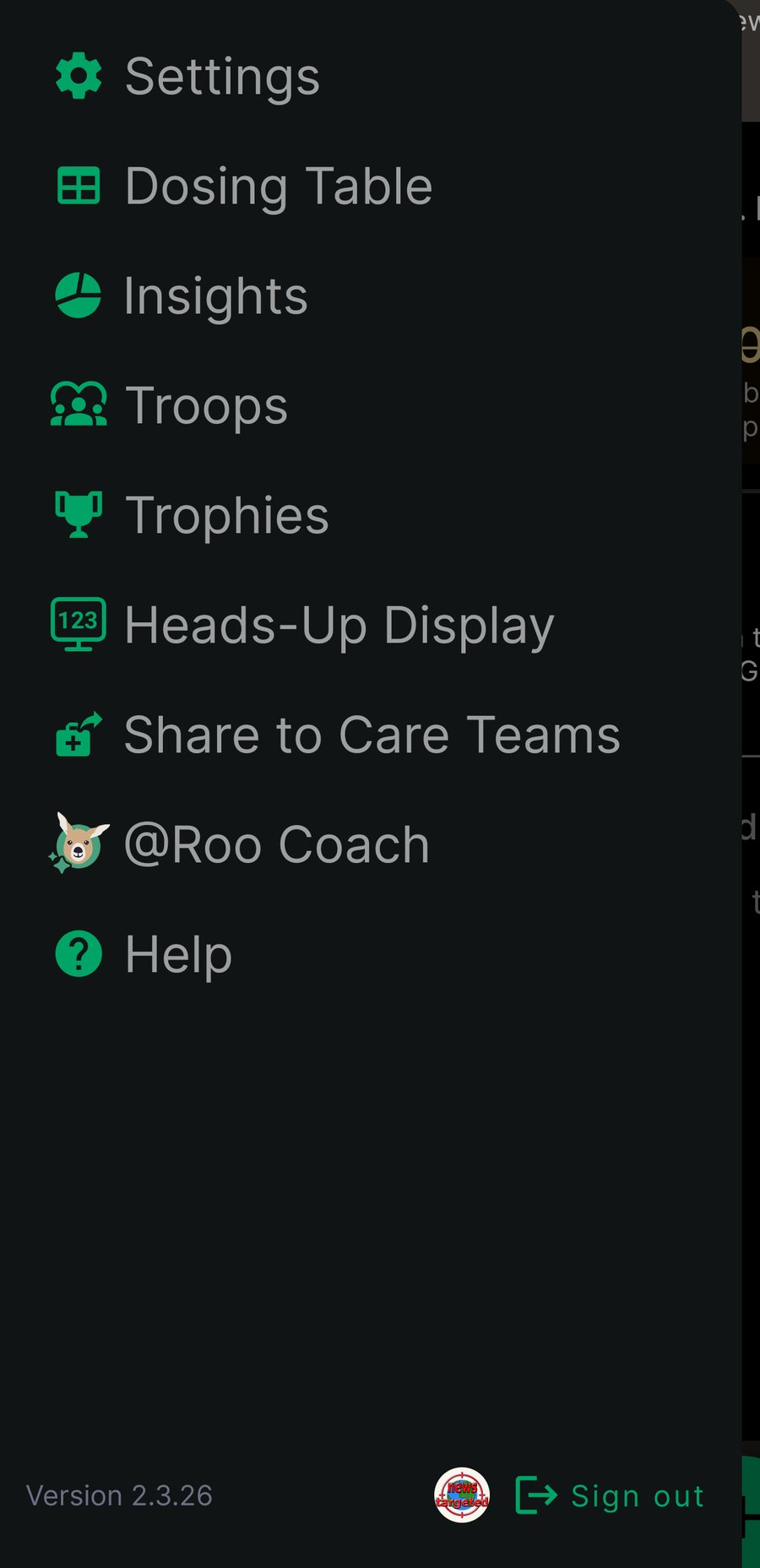
- On the student Android phone, open the menu. The menu button is three lines.
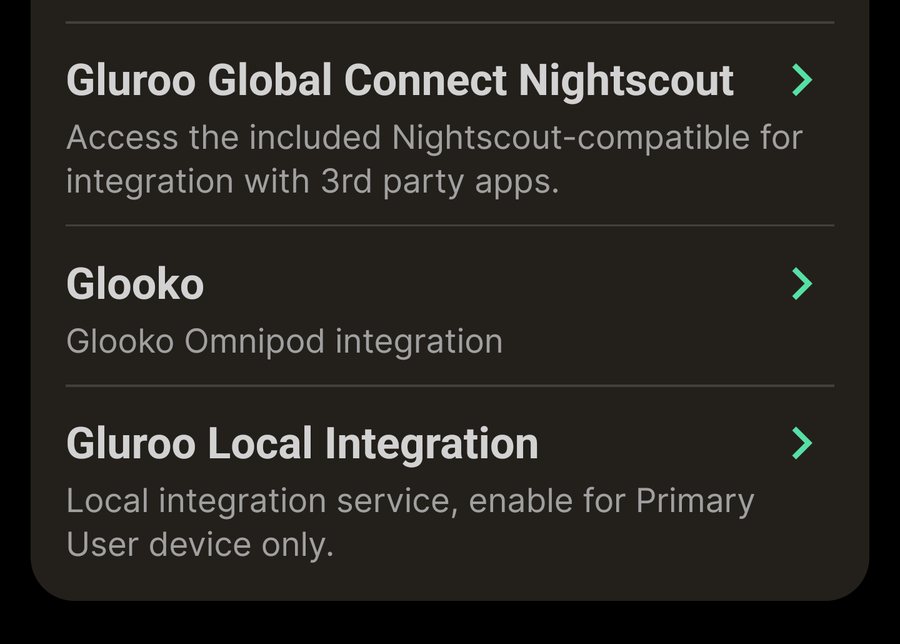
- Open Settings, then Gluroo Local Integration.
- GLI is experimental. Turn it on only on the Android Primary User phone: the same Android phone that already runs CamAPS FX.
- Tap Approve Notification Access.
- Android then asks you to allow notification access for Gluroo. Allow Gluroo.
- Gluroo reads CamAPS FX notifications. It looks for notices that start with "CamAPS FX". The glucose value is the number in that notification. This is not a full copy of the pump.
- Keep using CamAPS FX for treatment. GLI only shares what the notification already shows.
3. Invite a follower
- The follower phone only needs Gluroo, on Android or on iPhone. Invite that person into this student's GluCrew.
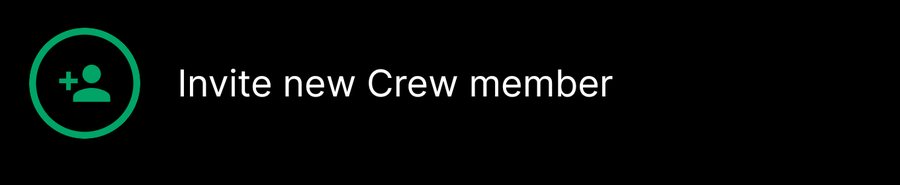
- Gluroo's own help says: open Menu, then GluCrew, then Invite new crew member. You can send a link, a QR code, or an email from Gluroo. In Norwegian the app includes the wording "Invitere nytt besetningsmedlem".
- The follower installs Gluroo if needed, opens that invite, and joins this student's crew. Leave GLI off on the follower phone.
- Send the invite only to people who should follow this student. Do not publish a live invite QR, and do not publish any API secret.
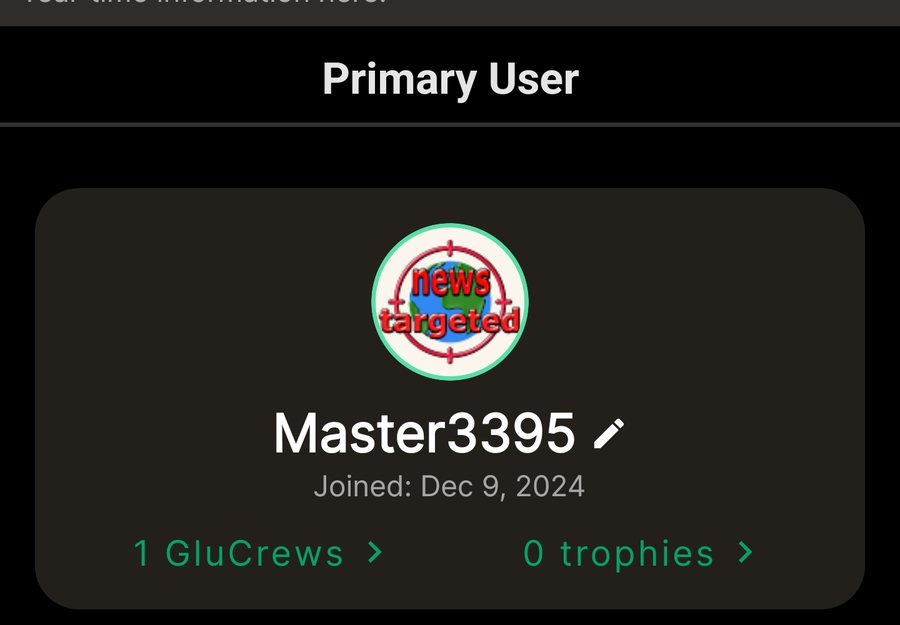
- On the phone we checked, Primary User showed "1 GluCrews". The app says you switch GluCrew by tapping the person with diabetes avatar in the center of the header. That switch shows once the account is in more than one crew.
4. A parent who already uses CamAPS FX
- A parent who already uses their own CamAPS FX can still install Gluroo and join as a follower. That Gluroo app can be on Android or on iPhone.
- Leave GLI off on the parent phone, on Android and on iPhone. GLI belongs only on the student's Android phone when that phone also runs CamAPS FX.
- Do not paste the student's Gluroo URL into the parent's CamAPS FX.
- CamAPS FX runs on Android and on iPhone. It also has its own Android companion invite. That companion invite is a different feature. It can show more pump detail than the notifications Gluroo reads on Android. This page is the Gluroo follower path.
5. Several students
- Use one GluCrew per student. Each student is their own Primary User.
- Invite the arrangement's follower accounts into that student's crew.
- Do not put several students in one crew as if they were one person.
- A follower who joins more than one crew switches with the person with diabetes avatar in the center of the header.
- Troops is a different menu item from GluCrew. The next section shows why a troop is the wrong container for school following.
6. Troops is a different group
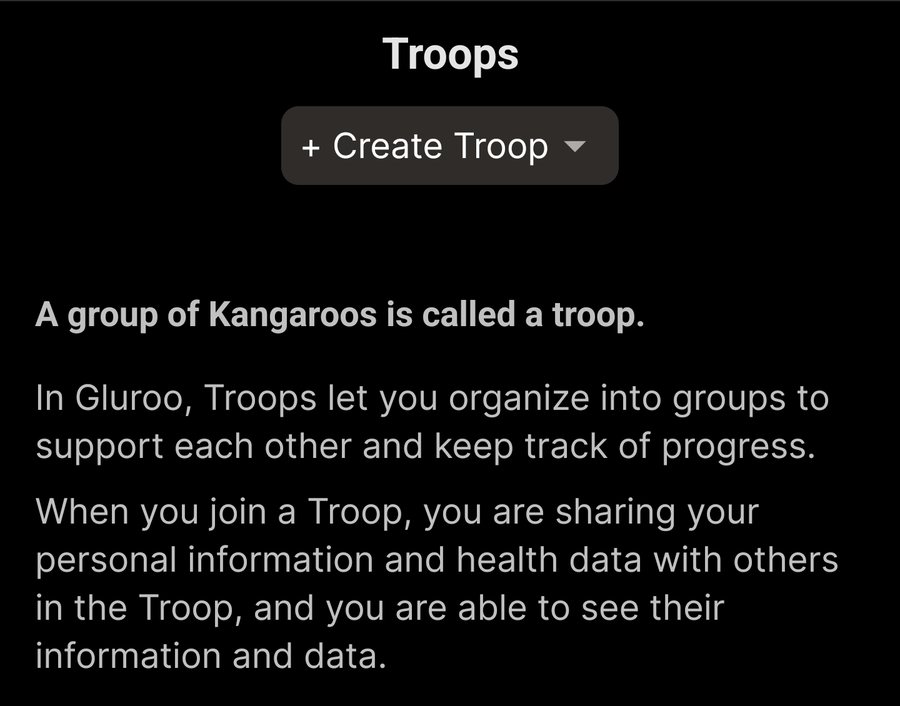
Do not create a troop for this CamAPS following setup. These steps only show how Troops differs from a GluCrew.
- On the Android phone, open the menu. The menu button is three lines. In Gluroo 2.3.26 the row is labeled Troops. That row is in the menu, not inside GluCrew.
- A GluCrew is one student. Followers join that student's crew. They do not see other students there.
- A troop shares health data with everyone in the troop. People in the troop can see each other's information. That is the wrong container when each student must be followed separately.
- For a school or an arrangement, keep one GluCrew per student. Invite the follower accounts into that student's crew.
- Do not put several students into one troop so everyone sees everyone. Do not tap Create Troop for this setup.

7. What Global Connect is, and what it is not
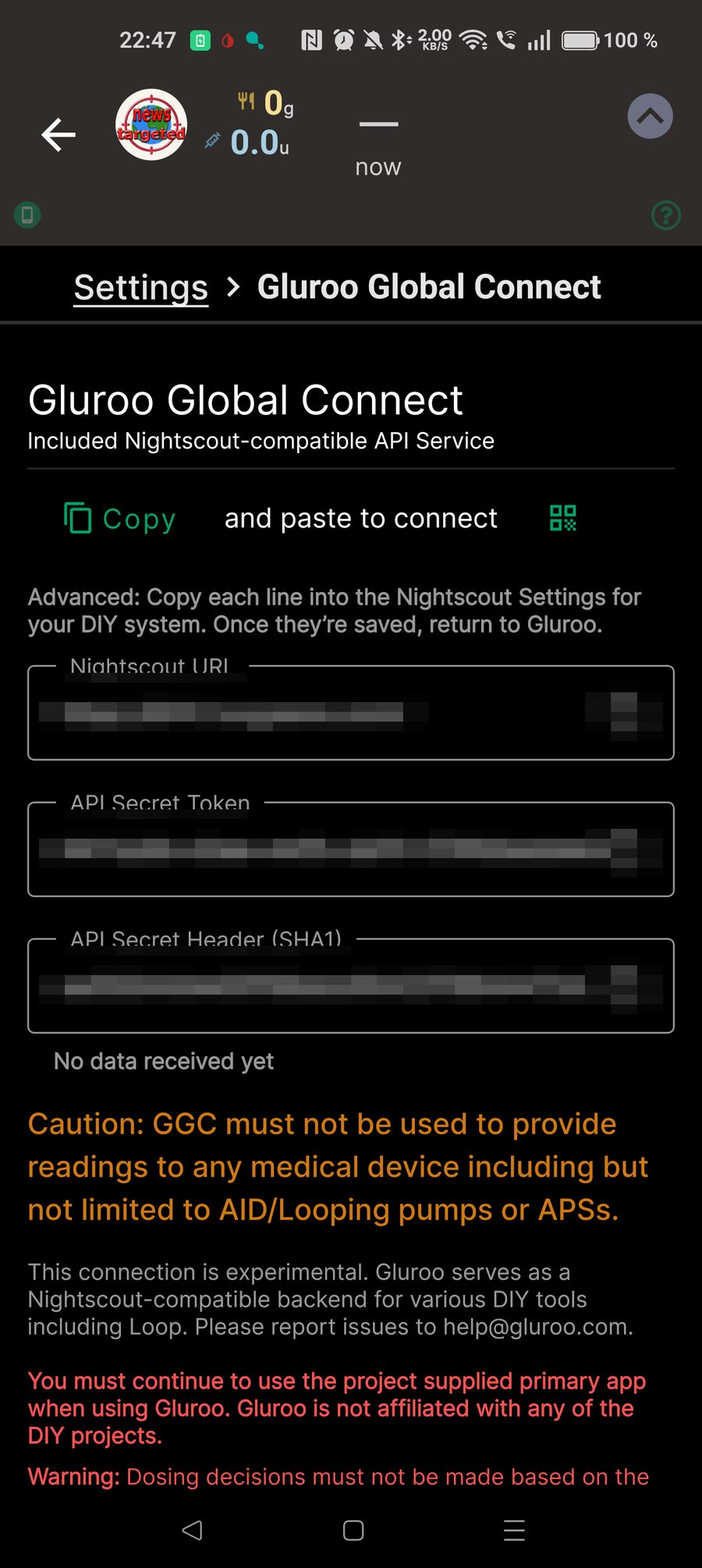
- Open Settings, then Gluroo Global Connect Nightscout.
- GGC makes this Gluroo account look like a Nightscout site: an address such as
https://….ns.gluroo.com, plus an API secret. - CamAPS FX does not upload there by itself. On the Android path, GLI reads notifications on the student phone. It does not send the pump to that Nightscout address.
- Use Global Connect only when some other Nightscout-style app must read or write this Gluroo account. Treat the API secret like a password. Do not paste it into CamAPS, into chat, or onto a public page.
- The screen warns that GGC must not feed a pump or an AID system, and that dosing must not be based on Gluroo. Keep using CamAPS FX for treatment.
Libre error codes
This page collects FreeStyle Libre error codes and display messages for Libre 1, 2, 2 Plus, 3 and 3 Plus (sensor, app and reader) so you can quickly look up what a code or message means.
Libre 1
-
373
Sensor error. Glucose reading is unavailable. Try scanning again in 10 minutes. (Community-reported LibreLink event code.)
Libre 2 / Libre 2 Plus
-
335
Scanning error. The smartphone failed to scan the sensor. Scan again. Hold the back of the phone close to the sensor. After the first tone or vibration, keep still until the second tone or vibration. (Community-reported; also matches Abbott Scan Error guidance.)
-
338
The sensor is starting up. It has been started but is not ready yet. Wait for the warm-up period to finish. (Community-reported; Abbott: New Sensor Starting Up.)
-
365
Your sensor is not working. Remove the sensor and start a new one. (Community-reported; Abbott displays similar guidance as Replace Sensor / Sensor Ended when the sensor has failed.)
-
366
Check Sensor. If the sensor is loose, remove it and start a new one. If it looks properly applied, try starting it again. (Community-reported; matches Abbott Check Sensor FAQ for Libre 2 / 2 Plus.)
-
373
Sensor error. Glucose reading is unavailable. Try scanning again after the time shown (often about 10 minutes). During the first 12 hours on Libre 2 / Libre 2 Plus, Abbott notes the body may still be adjusting; use a blood glucose meter and do not remove the sensor solely for this message. (Community code + Abbott Sensor Error FAQ.)
-
380
The sensor is having trouble measuring glucose. Restart or replace the sensor if it continues. (Community-reported; no separate Abbott numeric dictionary entry found.)
-
Libre 2 Plus note
Libre 2 Plus uses the same user-facing Sensor Error / Scan Error / Check Sensor guidance as Libre 2 in Abbott support. Wear time is typically 15 days (Libre 2 is often 14 days). No separate public Abbott numeric event-code list was found for Libre 2 Plus alone.
Libre 3 / Libre 3 Plus
-
57
New sensor applied / starting up. (Community-reported event-log code.)
-
365
Your sensor is not working. Remove the sensor and start a new one. (Community-reported.)
-
366
Check Sensor. Tip may not be under the skin. Try starting again; if it repeats, remove and apply a new sensor. (Community + Abbott Libre 3 / 3 Plus Check Sensor FAQ.)
-
373,P
Glucose reading unavailable / Sensor Error style pause. Try again after the time shown (often about 10 minutes). Abbott: Libre 3 / 3 Plus runs quality checks and may pause readings. Letter suffixes are community event-log flags, not a published Abbott user dictionary.
-
373,E / 373,F / 373,I
Same family as 373: temporary unavailable reading / quality pause. Community reports link letter variants to rapid glucose change; Abbott does not publish per-letter meanings. Wait the stated time; use a meter if needed.
-
380
Trouble measuring glucose. Restart or replace if it persists. (Community-reported.)
-
Libre 3 Plus note
Libre 3 Plus shares Abbott display messages (Sensor error, Check sensor, Sensor Ended, Signal Loss, Scan Error). Wear time is typically 15 days. No separate public Abbott numeric event-code list was found for Libre 3 Plus alone.
Official display messages (app / reader)
Wording from Abbott user manuals and support FAQs. These often appear in the app or on the reader (not always as numbers in the event log).
-
Sensor Error / Sensor error
Sensor cannot provide a glucose reading (Libre 2 / 2 Plus) or readings paused during quality checks (Libre 3 / 3 Plus). Check again after the duration shown. Libre 2 / 2 Plus first 12 hours: body may still adjust; use a meter; do not remove the sensor only for this. Source: Abbott support FAQs / user manuals.
-
Scan Error
Reader or phone could not communicate with / scan the sensor. Try scanning again; keep NFC area close and still. Move away from strong electromagnetic interference if needed. Source: Abbott troubleshooting / Libre 3 Plus FAQ.
-
Check Sensor
Sensor tip may not be under the skin, or sensor not applied properly. Try starting again. If Check Sensor repeats, remove and apply a new sensor. Source: Abbott Check Sensor FAQ / manuals.
-
Sensor Ended
Sensor life has ended. Remove it and start a new sensor. If this appears before the expected wear period (often 14 or 15 days by product), contact Abbott sensor support. Source: Abbott Libre 3 Plus FAQ / manuals.
-
Replace Sensor
System detected a problem with the sensor. Apply and start a new sensor. Source: Abbott FreeStyle Libre troubleshooting (AU).
-
Signal Loss
Sensor has not automatically communicated with the phone or reader for about 5 minutes (Libre 3 / 3 Plus wording). Keep device within range (about 10 m / 33 ft), do not force-close the app, toggle Bluetooth off/on, restart phone if needed. Source: Abbott Libre 3 Plus FAQ / Reader manuals.
-
Signal Loss Alarm
No automatic communication for about 20 minutes. Keep reader/phone within range and try scanning or restoring Bluetooth connection. Source: Abbott manuals / AU troubleshooting.
-
Sensor Too Hot / Sensor Too Cold
Sensor temperature is outside the range needed for a reading. Move to a suitable temperature and check again in a few minutes. Source: Abbott Libre 3 In-Service / Reader manuals.
-
Glucose Reading Unavailable
Often means the sensor is too hot or too cold. Move to an appropriate temperature and scan/check again in a few minutes. Source: Abbott AU troubleshooting.
-
New Sensor Starting Up
Sensor is not ready yet. Wait until the start-up period finishes (often about 60 minutes on scan systems). Source: Abbott troubleshooting.
-
Scan Timeout
Reader not held close enough. Hold within about 4 cm (1.5 in) of the sensor. Source: Abbott AU troubleshooting.
-
Sensor Already in Use
Sensor was started by another reader. Only the device that started it can scan it, or apply a new sensor. Source: Abbott AU troubleshooting.
-
New Sensor Found
You scanned a new sensor before the previous one ended. One active sensor per reader. Starting the new one ends use of the old one. Source: Abbott AU troubleshooting.
-
Bluetooth Off
Bluetooth is off on the phone. Enable Bluetooth in phone settings. Source: Abbott Libre 3 In-Service guide.
Reader: blood glucose / ketone errors (E-codes)
From Abbott FreeStyle Libre Reader user manuals for strip tests (not LibreLink NFC event codes).
-
E-1
Temperature too hot or too cold for the Reader (blood glucose / ketone strip test). Move Reader and strips into the strip operating range, wait, then retest with a new strip. Source: Abbott Reader user manuals.
-
E-2
Reader error. Turn the Reader off, then retest with a new strip. Contact Customer Service if it repeats. Source: Abbott Reader user manuals.
-
E-3
Blood drop too small, incorrect test procedure, or a problem with the test strip. Review instructions and retest with a new strip. Source: Abbott Reader user manuals.
-
E-4
Blood glucose may be too high to read, or there may be a strip problem. Retest with a new strip. If it repeats, contact your healthcare professional immediately. Source: Abbott Reader user manuals.
-
E-5
Blood was applied to the test strip too soon. Review instructions and retest with a new strip. Source: Abbott Reader user manuals.
-
E-6
Test strip may not be compatible with the Reader. Use the correct strip for your Reader and retest. Source: Abbott Reader user manuals.
-
E-7
Test strip may be damaged, used, or unrecognized. Use a correct, unused strip and retest. Source: Abbott Reader user manuals.
-
E-9
Reader error. Turn the Reader off, then retest with a new strip. Contact Customer Service if it repeats. Source: Abbott Reader user manuals.
Codes in the 4000-4999 series
Observed event codes without a detailed Abbott description. Community-reported.
-
4005
No detailed description is available for this code.
-
4008
No detailed description is available for this code.
-
4010
No detailed description is available for this code.
-
4011
No detailed description is available for this code.
-
4013
No detailed description is available for this code.
-
4202
No detailed description is available for this code.
-
4193
No detailed description is available for this code.
-
4224
No detailed description is available for this code.
-
4225
No detailed description is available for this code.
-
4227
No detailed description is available for this code.
General error codes for Libre 2 and 3
Older community table (not confirmed in a public Abbott code book). Use with caution; prefer in-app text, display messages, and Abbott support.
-
410
This code indicates an error during the sensor's initialization.
-
411
This code indicates a problem with the sensor insertion process.
-
412
This code indicates a problem with the communication between the reader and the sensor.
-
4123
This code indicates a problem with the sensor's communication or signal.
-
413
This error usually occurs when the sensor has expired or has reached its maximum usage time.
-
414
This code indicates a problem with the sensor's signal strength.
-
415
This error usually occurs when the sensor has failed or is not functioning properly.
-
416
This code indicates a problem with the sensor temperature.
-
417
This code indicates an error during the sensor insertion process.
-
418
This code indicates an error during the sensor warm-up process.
-
419
This error usually indicates a problem with the sensor signal.
-
420
This error usually occurs when the glucose reading is too high.
-
421
This error usually occurs when the glucose reading is too high or exceeds the maximum limit.
-
422
This code appears when the glucose reading is too low or falls below the minimum limit.
-
4222
This error usually occurs when there is a discrepancy between the sensor and blood glucose levels.
-
423
This code appears when the glucose reading is too low.
-
426
This code appears when the glucose reading is not available.
-
431
This code appears when the sensor's glucose readings are significantly different from expected values.
-
434
This error indicates a problem with the sensor's signal or data transmission.
-
435
This error indicates that the glucose reading is unreliable or inaccurate.
-
436
This error indicates a problem with the sensor temperature.
-
430
This error indicates that the sensor is expired or near its expiration date.
-
440
This error indicates a problematic or poor sensor start-up process.
-
445
This error occurs when the sensor cannot read glucose values due to a sensor-related error.
-
450
This code indicates an error during the sensor initialization process.
-
455
This error occurs when the sensor detects erroneous or inconsistent glucose readings.
-
460
This code indicates an error during communication between the sensor and the reader.
-
465
This error occurs when there is a problem with the sensor calibration.
-
470
This code indicates an error during the sensor warm-up process.
-
475
This error occurs when the sensor detects erroneous or inconsistent glucose readings.
-
480
This code indicates a general sensor error that cannot be identified more specifically.
-
485
This error occurs when there is a problem with the sensor unit or sensor communication.
-
490
This error occurs when the sensor detects an error or abnormality in the measurements.
-
495
This code indicates an error during the sensor start-up or initialization.
-
500
This error occurs when there is a general error in the sensor unit.
-
505
This code indicates an error in the sensor algorithm or data programming.
-
510
This error occurs when there is a problem with the sensor's electrical connection or power supply.
-
515
This code indicates an error during the sensor calibration process.
-
520
This error occurs when there is an error or misalignment in the sensor measurements.
-
525
This code indicates an error during the sensor update process.
-
530
This error occurs when there is a problem with the sensor's memory or data storage.
-
535
This code indicates an error in the sensor temperature compensation.
-
540
This error occurs when there is a problem with the sensor's response or response time.
-
545
This code indicates an error during the sensor recognition process.
-
550
This error occurs when there is a general error in the sensor operation.
-
555
This code indicates an error in the sensor's alarms or alerts.
-
560
This error occurs when the sensor experiences interference from external sources.
-
565
This code indicates an error during the sensor measurement process.
-
570
This error occurs when there is an error in the sensor calibration algorithm.
-
575
This code indicates an error in the sensor signal quality.
-
580
This error occurs when the sensor detects deviations or inconsistencies in the measurements over time.
-
585
This error occurs when there is an error in the sensor signal filtering or sudden changes in signal strength.
-
590
This code indicates an error during the sensor battery voltage monitoring.
-
595
This error occurs when the sensor detects an error or inconsistency in the algorithm for data analysis and calculations.
-
600
This code indicates a general error in the reader unit.
-
605
This error occurs when the reader unit fails to communicate with the sensor unit.
-
610
This code indicates an error in the reader calibration process.
-
615
This error occurs when the reader unit cannot process or interpret the sensor data correctly.
-
620
This code indicates an error during the reader start-up or initialization.
-
625
This error occurs when there are problems with the reader display or display functionality.
-
630
This error occurs when there is a problem with the reader battery voltage or power supply.
-
635
This code indicates an error during the reader data transfer process.
-
640
This error occurs when the reader unit cannot establish a connection to the sensor unit.
-
645
This code indicates an error in the reader temperature compensation.
-
650
This error occurs when the reader unit detects an invalid or unreadable sensor.
-
655
This code indicates an error during the reader alarms or alerts.
-
660
This error occurs when the reader unit cannot process or interpret the sensor signals correctly.
-
665
This code indicates an error in the reader signal processing or filtering.
-
670
This error occurs when there is an error or misalignment in the reader measurements.
-
675
This code indicates an error in the reader calibration algorithm.
-
680
This error occurs when the reader unit detects an error during the sensor warm-up process.
-
685
This code indicates an error in the reader algorithm for glucose calculation.
-
690
This error occurs when there is a problem with the reader data storage or memory.
-
695
This code indicates an error during the reader update process.
-
700
This error occurs when the reader unit cannot establish a connection to the sensor unit due to signal problems.
-
705
This code indicates an error during the reader sensor detection process.
-
710
This error occurs when there is an error during the reader battery voltage monitoring.
-
715
This code indicates an error in the reader response or response time.
-
720
This error occurs when the reader unit experiences software or system problems.
-
725
This code indicates an error during the reader calibration process.
CamAPS FX uses its own LBR codes, which are not the same as Abbott LibreLink codes. Open the CamAPS FX report
Dexcom G6 and G7 use named alerts, not the same numeric codes as Libre. Open Dexcom alerts
Dexcom alerts
This page collects named Dexcom alerts for G6 and G7. Dexcom shows on-screen text, not a numeric code book like Libre. Search the alert name, for example Signal Loss, Sensor Failed, or 941.
G6 app: system alerts
From the Dexcom G6 System User Guide, Appendix H.1. Default on, sound, vibration, and whether you can change the alert are stated as the guide gives them.
-
Calibration Error
After 15 minutes, enter a new blood glucose reading to recalibrate the sensor. Default on. Fixed alert beep and vibration. Sound and vibration cannot be changed. Can sound when the phone is muted. (G6 user guide, Appendix H.1.)
-
Calibration Required (1st)
Enter your first blood glucose reading. Default on. Fixed alert beep and vibration. Settings cannot be changed. Can sound when the phone is muted. (Appendix H.1.)
-
Calibration Required (2nd)
Enter your second blood glucose reading. Default on. Fixed alert beep and vibration. Settings cannot be changed. Can sound when the phone is muted. (Appendix H.1.)
-
Calibration Alert
Enter a new blood glucose reading to keep sensor accuracy. The screen also says Dexcom G6 now and Press for More. Default on. Silent alert, no vibration. Cannot be changed, and it does not override mute. (Appendix H.1.)
-
Sensor Failed
Remove the sensor now. You will not get alerts, alarms, or sensor glucose readings until you replace the sensor. Default on. Fixed alert beep and vibration. Cannot be changed. Can sound when the phone is muted. (Appendix H.1.)
-
Transmitter Battery Low
Contact Global Technical Support for a replacement. Default on. Fixed alert beep and vibration. Cannot be changed. Does not override mute. (Appendix H.1.)
-
Sensor Expiring (24 hours)
The sensor session will end in less than 24 hours. After that you will not get alerts, alarms, or sensor glucose unless you replace the sensor. Default on. Silent alert, no vibration. Cannot be changed. Does not override mute. (Appendix H.1.)
-
Sensor Expiring (6 hours)
The sensor session will end in less than 6 hours. Same outcome as the 24-hour notice if you do not replace the sensor. Default on. Silent alert, no vibration. Cannot be changed. Does not override mute. (Appendix H.1.)
-
Sensor Expiring (2 hours)
The sensor session will end in less than 2 hours. Same outcome if you do not replace the sensor. Default on. Silent alert, no vibration. Cannot be changed. Does not override mute. (Appendix H.1.)
-
Sensor Expiring (30 minutes)
The sensor session will end in less than 30 minutes. Same outcome if you do not replace the sensor. Default on. Fixed alert beep and vibration. Cannot be changed. Does not override mute. (Appendix H.1.)
-
Sensor Expired
Remove the sensor now. You will not get alerts, alarms, or sensor glucose until you replace the sensor. Default on. Fixed alert beep and vibration. Cannot be changed. Can sound when the phone is muted. (Appendix H.1.)
-
Transmitter Alert
The transmitter is not working. Pair a new transmitter. Default on. Fixed alert beep and vibration. Cannot be changed. Can sound when the phone is muted. (Appendix H.1.)
-
Transmitter Expires Soon (3 weeks)
Order a new transmitter. It will expire in about 3 weeks. You get a Last Sensor Session alert before it expires. Wait to change it until then. Transmitters last 3 months. Default on. Fixed alert beep and vibration. Cannot be changed. Does not override mute. (Appendix H.1.)
-
Transmitter Expires Soon (2 weeks)
Order a new transmitter. It will expire in about 2 weeks. You get a Last Sensor Session alert before it expires. Wait to change it until then. Transmitters last 3 months. Default on. Fixed alert beep and vibration. Cannot be changed. Does not override mute. (Appendix H.1.)
-
Transmitter and Sensor Expired
Screen code 941. Pair a new transmitter with a new sensor. Remove the sensor and transmitter now. You will not get alerts, alarms, or sensor glucose until you replace the sensor. Default on. Fixed alert beep and vibration. Cannot be changed. Can sound when the phone is muted. (Appendix H.1.)
-
Low Storage
Phone storage is almost full. Exit the app, then free space (the guide shows Settings > General > Usage > Manage Storage). If storage runs out you will not get alerts, alarms, or sensor glucose. Default on. Silent alert, no vibration. Cannot be changed. Does not override mute. (Appendix H.1.)
-
Very Low Storage
Same storage warning as Low Storage, with the same silent alert. Default on. No vibration. Cannot be changed. Does not override mute. Free space so the app can keep working. (Appendix H.1.)
-
No Storage Error
There is not enough storage for the Dexcom CGM app. Free space or you will not get alerts, alarms, or sensor glucose. Default on. Fixed alert beep and vibration. Cannot be changed. Can sound when the phone is muted. (Appendix H.1.)
-
App Stopped (restart)
The Dexcom CGM app hit a temporary error. Exit and restart the app. Default on. Fixed alert beep and vibration. Cannot be changed. Can sound when the phone is muted. (Appendix H.1.)
-
App Stopped (reinstall)
The app is no longer working correctly. Delete it, install it again from the store, then sign in with your Dexcom username and password. Default on. Fixed alert beep and vibration. Cannot be changed. Can sound when the phone is muted. (Appendix H.1.)
G6 app: glucose and no data
From Appendix H.2. mg/dL is the guide unit. mmol/L is converted (18 mg/dL is 1 mmol/L) for readers who use that unit.
-
Urgent Low Glucose Alarm
Sensor glucose is at or below 55 mg/dL (3.1 mmol/L). The sample screen says below 55 mg/dL. Default on. Urgent Low sound and vibration. You can set Notify Below (default 55 mg/dL) and Repeat (default 30 minutes). Can sound when the phone is muted. (Appendix H.2.)
-
Urgent Low Soon Alert
Act now to prevent a low. Default off. Urgent Low sound and vibration when enabled. You can turn it on or off, set Repeat (default 30 minutes), and the sound (default Urgent Low). Can sound when the phone is muted. (Appendix H.2.)
-
Low Glucose Alert
Example screen: sensor glucose below 65 mg/dL (3.6 mmol/L). Default on. Low Alert sound and vibration. Notify Below default is 70 mg/dL (3.9 mmol/L). Repeat default is Never. You can turn it on or off and change the sound. Can sound when the phone is muted. (Appendix H.2.)
-
High Glucose Alert
Example screen: sensor glucose above 275 mg/dL (15.3 mmol/L). Default on. High Alert sound and vibration. Notify Above default is 250 mg/dL (13.9 mmol/L). Repeat default is Never. You can turn it on or off and change the sound. Can sound when the phone is muted. (Appendix H.2.)
-
Rise Rate Alert
Sensor glucose is rising 3 mg/dL (about 0.17 mmol/L) or more per minute. Default off. Rise Rate sound and vibration when enabled. Notify Above default is 3 mg/dL/min. You can turn it on or off and change the sound. Can sound when the phone is muted. (Appendix H.2.)
-
Fall Rate Alert
Sensor glucose is falling 3 mg/dL (about 0.17 mmol/L) or more per minute. Default off. Fall Rate sound and vibration when enabled. Notify Below default is 3 mg/dL/min. You can turn it on or off and change the sound. Can sound when the phone is muted. (Appendix H.2.)
-
Signal Loss Alert
You will not get alerts, alarms, or sensor glucose readings. Default on. Signal Loss sound, no vibration. You can turn it on or off and change the sound. Override mute: Android yes, Apple no. (Appendix H.2.)
-
No Readings Alert
You will not get alerts, alarms, or sensor glucose readings. Default on. Signal Loss sound and vibration. Default off for the editable on/off setting in the guide table (Enable/Disable default is disabled). You can change the sound. Can sound when the phone is muted. (Appendix H.2.)
G6 receiver
From Appendix H.3 and H.4. Some receiver screens are graphics in the PDF, with no title in the text layer. Those rows are omitted. Rows here have a name in the guide text or in the settings column.
-
Sensor warmup is done
Receiver note in Appendix H.3: warmup is done. No need to calibrate to get G6 readings. Default on. One 1-second vibration and one 1-second medium beep. No editable settings. The screen title itself is a graphic in the PDF.
-
Pairing Failed
Receiver note in Appendix H.3 names this Pairing Failed. Default on. One 1-second vibration and one 1-second medium beep. No editable settings. The screen title is a graphic in the PDF.
-
Sensor Failed Alert
Replace the sensor now. You will not get alerts, alarms, or sensor glucose. See the product instructions for removing the sensor. Default on. One 1-second vibration and one 1-second medium beep. The first notification also sounds for Urgent Low, Urgent Low Soon, and Transmitter Alert. (Appendix H.3.)
-
Silent Sensor Shutoff
Appendix H.3 note: Silent Sensor Shutoff. Default on. Silent, no vibration. No editable settings. The screen title is a graphic in the PDF.
-
Sensor Expired Alert
The sensor session has ended. Replace the sensor. You will not get alerts, alarms, or sensor glucose. Default on. One 1-second vibration and one 1-second medium beep. The note also says Sensor Shutoff. (Appendix H.3.)
-
No Restarts
No alerts, alarms, or sensor glucose until the single-use sensor is replaced. You cannot restart a sensor after it has been stopped. If you try, the transmitter checks and stops it again. Default on. One 1-second vibration and one 1-second medium beep. (Appendix H.3.)
-
Transmitter Battery Low (receiver)
The transmitter will expire in about 11 weeks. You will be told when it is time to pair a new transmitter. Default on. One 1-second vibration and one 1-second medium beep. (Appendix H.3.)
-
Recoverable error
Appendix H.3 note: Recoverable error. Default on. Silent, no vibration. No editable settings. The screen title is a graphic in the PDF.
-
Set time alarm
Appendix H.3 note: Set time alarm. Default on. One 1-second vibration and one 1-second medium beep. No editable settings. The screen title is a graphic in the PDF.
-
High alarm (receiver)
Appendix H.4 settings text: EGV at or above the High alarm level. Default on. Two half-second vibrations and two high beeps, half a second apart. The user can turn it on or off. The screen title is a graphic in the PDF.
-
Low alarm (receiver)
Appendix H.4 settings text: EGV at or below the Low alarm level. Default on. Three vibrations of one third of a second and three low beeps, one third of a second apart. The user can turn it on or off. The screen title is a graphic in the PDF.
-
EGV at or below 55 (receiver)
Appendix H.4 settings text: EGV at or below 55 mg/dL (3.1 mmol/L). Default on. Four 200 ms vibrations and four quarter-second low beeps. The user can turn it on or off. The same page says the first notification includes sound for Urgent Low, Urgent Low Soon, Sensor Failed, and Transmitter alert. The screen title is a graphic in the PDF.
G7 glucose alerts
From the Dexcom G7 CGM System User Guide. The guide example profile: Urgent Low 55 mg/dL, Urgent Low Soon on, Low 70, High 250, Rising Fast off, Falling Fast off.
-
Urgent Low
Sensor reading is 55 mg/dL (3.1 mmol/L) or below. A guide example shows 53 mg/dL. Default level 55 mg/dL. This alert can still add sound if you do not acknowledge it, including in Vibrate quiet mode. Silence All can silence it for up to 6 hours, but you should still look at the screen. (G7 user guide.)
-
Urgent Low Soon
Your glucose is falling so fast it will be at 55 mg/dL (3.1 mmol/L) within 20 minutes, even if the current reading is still in range. Act now. The guide example profile shows this alert on. It is tied to 55 mg/dL and 20 minutes, unlike Falling Fast. (G7 user guide.)
-
Low Glucose
Glucose alert. The guide example profile uses 70 mg/dL (3.9 mmol/L). You can turn it on or off and set the level with your care team. Confirm symptoms with a blood glucose meter when the alert does not match how you feel. (G7 user guide.)
-
High Glucose
Glucose alert. The guide example profile uses 250 mg/dL (13.9 mmol/L). You can turn it on or off. Delay 1st Alert can wait until the reading has stayed at or above the level for a time you choose. (G7 user guide and Dexcom alert FAQ.)
-
Rising Fast
The reading is rising 3 mg/dL (about 0.17 mmol/L) or more per minute. The guide example profile shows this off. You can turn it on under Profile > Alerts in the phone app, or Menu > Settings > Alerts on the receiver. (G7 user guide.)
-
Falling Fast
The reading is falling 3 mg/dL (about 0.17 mmol/L) or more per minute. You choose the level. It is not tied to 20 minutes. If you are already at or below 55 mg/dL, you get Urgent Low instead. The example profile shows this off. (G7 user guide.)
G7 technical alerts
Technical alerts prevent, or will prevent, display of your current glucose. If you do not acknowledge them, they can add sound. Exception: Silence All on the phone and watch apps does not add sound.
-
Signal Loss
The display temporarily stops getting sensor readings. Keep the phone or receiver within 33 feet (about 6 meters), on the same side of the body, with the app open. Wait up to 30 minutes. Do not swipe the app closed. If it lasts more than 30 minutes, use Profile > Contact. Technical alert: it can add sound if you do not acknowledge it, unless Silence All is on. (G7 user guide and Dexcom Signal Loss FAQ.)
-
Brief Sensor Issue
The sensor cannot read glucose right now. Do not remove the sensor. It is temporary and often clears within 3 hours. Use a blood glucose meter for treatment decisions. If it lasts more than 3 hours, contact support in the app. It can lead to Sensor Failed. (G7 user guide and Dexcom sensor-failure FAQ.)
-
Sensor Failed
The sensor can no longer determine glucose. Remove it (peel the patch from the edge) and start a new sensor. You will not get readings or alerts until then. Technical alert: it can add sound if you do not acknowledge it, unless Silence All is on. (G7 user guide.)
-
Replace Sensor Now
Technical alert grouped with Sensor Failed. You are not getting sensor readings. Start a new sensor. It can add sound if you do not acknowledge it, unless Silence All is on. (G7 user guide.)
-
App Stopped Working
Technical alert. The phone app has stopped working, so current glucose may not show. It can add sound if you do not acknowledge it, unless Silence All is on. Follow the on-screen steps and contact support if it returns. (G7 user guide glossary.)
-
Phone App Stopped Working
Technical alert on a watch or other display: the phone app stopped working. Glucose on that display can stop until the phone app works again. It can add sound if you do not acknowledge it, unless Silence All is on. (G7 user guide glossary.)
-
Watch App Stopped Working
Technical alert. The watch app stopped working. It can add sound if you do not acknowledge it, unless Silence All is on. (G7 user guide glossary.)
-
App Stopped: Phone Storage Full
Technical alert. The phone app stopped because storage is full. Free space or you will not get readings and alerts. It can add sound if you do not acknowledge it, unless Silence All is on. (G7 user guide glossary.)
-
App Stopped: Watch Storage Full
Technical alert. The watch app stopped because watch storage is full. Free space on the watch. It can add sound if you do not acknowledge it, unless Silence All is on. (G7 user guide glossary.)
-
Direct to Watch stopped working
Technical alert. Direct to Watch stopped, so the watch is no longer a standalone display. It can add sound if you do not acknowledge it, unless Silence All is on. (G7 user guide glossary.)
-
Set Date/Time
Technical alert. The display date or time needs to be set before glucose information can be trusted. It can add sound if you do not acknowledge it, unless Silence All is on. (G7 user guide glossary.)
-
System Check
Technical alert about a situation that prevents, or will prevent, current glucose from displaying. Follow the screen. It can add sound if you do not acknowledge it, unless Silence All is on. (G7 user guide glossary.)
-
Very Low Battery
Technical alert. Battery is so low that glucose display will stop or has stopped. Charge the display. It can add sound if you do not acknowledge it, unless Silence All is on. This is separate from the system alert Low Battery. (G7 user guide glossary.)
-
Weak Charger
Technical alert. The charger is too weak for the display to keep running as needed. Use a stronger charger. It can add sound if you do not acknowledge it, unless Silence All is on. (G7 user guide glossary.)
G7 system alerts
System alerts that are not about the glucose number itself. Names come from the G7 user guide glossary. Technical alerts have their own filter.
-
App Bluetooth is Off
Phone app Bluetooth is off, so the app cannot stay connected to the sensor. Turn Bluetooth on. Listed as a system alert that can add sound if you do not acknowledge it. (G7 user guide glossary.)
-
App is closed
The G7 app is closed. Open it and leave it running. Listed as a system alert that can add sound if you do not acknowledge it. (G7 user guide glossary.)
-
App Location is Off
The app does not have location access. The guide lists this as a system alert that can add sound if you do not acknowledge it. Turn location permission back on if the screen asks for it. (G7 user guide glossary.)
-
Calibration not used
A calibration entry was not used. On G7, calibration is optional and uses a fingertip meter value. Listed as a system alert in the glossary. (G7 user guide glossary.)
-
Cannot pair sensor
The sensor did not pair. Keep it close to the display and try again. Listed as a system alert in the glossary. (G7 user guide glossary.)
-
Direct to Watch is off
Direct to Watch is off, so the watch is not acting as its own display. Listed as a system alert in the glossary. (G7 user guide glossary.)
-
G7 is ready to pair with your Watch
The sensor or app is ready to pair with the watch. Follow the on-screen pair steps. Listed as a system alert in the glossary. (G7 user guide glossary.)
-
Location Permission Restricted
Location permission is restricted, so the app may not connect. Listed as a system alert in the glossary. Allow location if the screen asks for it. (G7 user guide glossary.)
-
Low Battery
The display battery is low. Charge it before it becomes the technical alert Very Low Battery. Listed as a system alert in the glossary. (G7 user guide glossary.)
-
Pairing Complete
Pairing finished. Listed as a system alert in the glossary. (G7 user guide glossary.)
-
Pairing Unsuccessful
Pairing did not finish. Move the display closer and try again. Listed as a system alert in the glossary. (G7 user guide glossary.)
-
Phone app is closed
The phone app is closed, so a watch or other display may stop getting phone data. Open the phone app. Listed as a system alert that can add sound if you do not acknowledge it. (G7 user guide glossary.)
-
Phone Bluetooth is Off
Phone Bluetooth is off. Turn it on. Listed as a system alert that can add sound if you do not acknowledge it. (G7 user guide glossary.)
-
Phone Location is Off
Phone location is off. Listed as a system alert that can add sound if you do not acknowledge it. Turn it on if the app asks for it. (G7 user guide glossary.)
-
Phone settings conflict
A phone setting conflicts with G7. Open the alert and the in-app phone safety guide. Listed as a system alert in the glossary. (G7 user guide glossary.)
-
Phone Storage Low
Phone storage is low. Free space so the app can keep working. This is the warning before App Stopped: Phone Storage Full. Listed as a system alert in the glossary. (G7 user guide glossary.)
-
Phone Storage Very Low
Phone storage is very low. Free space now. Listed as a system alert in the glossary. (G7 user guide glossary.)
-
Readings Stop Soon
Sensor readings will stop soon. Replace the sensor when the app or receiver tells you to. Listed as a system alert in the glossary. G7 also has a 12-hour grace period after the sensor session in the glossary. (G7 user guide glossary.)
-
Searching for Sensor
The display is searching for the sensor. Keep them close. Listed as a system alert in the glossary. (G7 user guide glossary.)
-
Sensor can't pair with Watch
The sensor could not pair with the watch. Listed as a system alert in the glossary. Follow the watch pair steps on the screen. (G7 user guide glossary.)
-
Sensor Expired
The sensor session has ended. You need a new sensor for readings and alerts. Listed as a system alert in the glossary. (G7 user guide glossary.)
-
Sensor Expires in 2 Hours
The sensor session ends in about 2 hours. Listed as a system alert in the glossary. (G7 user guide glossary.)
-
Sensor Expires in 24 Hours
The sensor session ends in about 24 hours. Listed as a system alert in the glossary. (G7 user guide glossary.)
-
Sensor not found by Watch
The watch cannot find the sensor. Move the watch closer. Listed as a system alert in the glossary. (G7 user guide glossary.)
-
Sensor not found yet
The display has not found the sensor yet. Wait and keep it close. Listed as a system alert in the glossary. (G7 user guide glossary.)
-
Sensor Paired
The sensor is paired. Listed as a system alert in the glossary. (G7 user guide glossary.)
-
Sensor paired with your phone
The sensor is paired with the phone. Listed as a system alert in the glossary. (G7 user guide glossary.)
-
Sensor paired with your Watch
The sensor is paired with the watch. Listed as a system alert in the glossary. (G7 user guide glossary.)
-
Sensor Warmup Complete
Sensor warmup is finished. Warmup takes about 30 minutes after you insert and pair. You do not get readings or alerts during warmup. Listed as a system alert in the glossary. (G7 user guide glossary.)
-
Warmup Complete
Warmup is finished and readings can start. Listed as a system alert in the glossary, alongside Sensor Warmup Complete. (G7 user guide glossary.)
-
Watch Bluetooth is off
Watch Bluetooth is off. Turn it on to keep the watch connected. Listed as a system alert in the glossary. (G7 user guide glossary.)
-
Watch pairing unsuccessful
The watch did not finish pairing. Try again from the screen. Listed as a system alert in the glossary. (G7 user guide glossary.)
-
Watch Storage Low
Watch storage is low. Free space before the watch app stops. Listed as a system alert in the glossary. (G7 user guide glossary.)
-
Watch Storage Very Low
Watch storage is very low. Free space now. Listed as a system alert in the glossary. (G7 user guide glossary.)
G7 compared with G6
Quiet Modes, alert profiles, and the fact that G7 has no separate transmitter. G7 15 Day uses the same alert names here, unless the 15 Day screen says otherwise.
-
Quiet Modes
G7 Quiet Modes override the phone sound and each alert sound. Vibrate: alerts vibrate and do not sound, for up to 6 hours or until you turn it off. Urgent Low and technical alerts can still add sound if you do not acknowledge them. Silence All: no sound and no vibration for up to 6 hours. You still see alerts. Check the screen often. (Dexcom G7 alert FAQ.)
-
Alert Profile
G7 Alert Profile replaces the G6 Alert Schedule. You can keep a second set of alerts and switch by hand, or on a schedule (for example day and night). (Dexcom G7 alert FAQ.)
-
No separate transmitter
On G7 the transmitter is built into the sensor. You will not see G6 transmitter alerts such as Transmitter Battery Low, Transmitter Expires Soon, or screen code 941. Pair and replace the sensor itself. (G7 user guide glossary.)
-
G7 15 Day
Dexcom G7 15 Day is a longer-wear G7 sensor. This page uses the alert names in the standard G7 user guide. If a 15 Day screen uses different wording, follow that screen and the 15 Day guide.
-
Calibration (optional)
G7 calibration is optional. Enter a fingertip meter value if you choose to calibrate. The guide lists Calibration not used as a system alert when a calibration was not used. Only fingertip tests should be used to calibrate. (G7 user guide glossary.)
FreeStyle Libre uses its own numeric codes. They are not the same as Dexcom alerts. Open Libre error codes
Sources: G6 user guide (PDF) G7 user guide (PDF)
Member tools
These tools require a free account. Sign in at /login (Discord or email).
Dashboard
View your lottery draw history, statistics, and CSV export logs. Paginated tables help you review past draws and downloads.
Travel expenses (Kjøreregning)
Create and manage travel expense reports: trips, distances, rates, and printable views. Share a public link when needed.
Invoice (Faktura)
Create invoices with line items, client details, and PDF-friendly layout. Edit drafts and share a public view link with recipients.
Meeting minutes (Referat)
Write and edit meeting minutes with structured sections. Export or share read-only views for your organisation.
Account and sign-in
Sign up and sign in
- Register – create an account with email
- Login – Discord OAuth or email and password
- Forgot password – reset link sent to your registered email
Profile
Profile – update display name, email preferences, and linked Discord account.
Security keys (WebAuthn)
From your profile you can register a security key or Windows Hello for passwordless sign-in where supported. Requires a modern browser and HTTPS.
Nightscout accounts
Nightscout hosting uses the same site login. After subscribing, open Nightscout dashboard to create instances.
Site and support
- Privacy policy
- Terms of use
- Accessibility statement
- Contact
- Changelog – release history and fixes
- Service status
Use the cookie settings link in the footer to manage consent categories.